
In October 2026, Google released a new feature that lets you optimize your Google Tag Manager (GTM) container. It merges the separate files your site downloads to measure different Google services into one. GTM alone is now enough, so your site loads faster. And there’s a privacy bonus: you can set GTM up so the visitor’s browser sends nothing at all to Google’s servers before consent.
Why optimize your Google Tag Manager container
Google Tag Manager and page speed
Until now, GTM downloaded a separate library (a gtag.js file) for every Google measurement ID. After optimization, those files are gone and a single GTM file does the job. On sabatka.net, with one GA4 property and one Google Ads account, that meant roughly 300 kB less data transferred and two fewer files from Google. The more Google IDs you run, the bigger the saving, since each gtag.js accounts for roughly 150–180 kB of transfer.
Transfer is the amount of data that actually travels over the network (files are sent compressed):
| File | Before | After |
|---|---|---|
| gtm.js (the GTM file) | ~195 kB (estimate) | ~231 kB |
| gtag.js for GA4 | 181 kB | 0 |
| gtag.js for Google Ads | 155 kB | 0 |
| Total transfer | ~530 kB (estimate) | ~231 kB |
For specialists: uncompressed, it went from 1,610 kB to 742 kB. gtm.js itself grew from 629 to 742 kB because it now carries the GA4 and Ads configuration. For more context, see GTM and page speed.

Lab note
It’s like an Occam’s razor: the simplest solution is usually the best—in this case, one file instead of three.
GTM a GDPR
Many sites run Google’s tags in Advanced Consent Mode: without consent, the tags don’t set cookies, but they still send data to the measurement tools (so-called cookieless pings).
Yet every time a visitor’s browser downloads a file from a Google domain or sends a request to one, Google receives the visitor’s IP address (which can be used to trace them on the network) and device details. That was one of the reasons a German administrative court in Hannover ruled in March 2025, at first instance, that using GTM requires consent (see the analysis in GTM in violation of the GDPR).
If you want to keep cookieless pings for analytics and can live without remarketing data from visitors who haven’t consented (remarketing means targeting ads at people who have already visited your site), a combination of two things can help:
- Server-side GTM
Server-side GTM (sGTM) is your own measurement server that data passes through before it reaches Google. It serves the GTM file, and GA4 sends its data there. Ideally, the original IP address, and possibly other visitor details, are stripped from the request before it reaches sGTM. - Optimization plus blocking advertising data without consent
Google Ads remarketing tags can’t be routed through your server alone. Even with a server-side setup, they need the browser to contact Google’s domains, because that’s where Google keeps its cookies. So you have to switch them off until consent is granted.
The visitor’s browser then doesn’t talk to Google’s servers at all before consent, and you decide what leaves your server. Keep in mind that you still need consent for measurement itself, with everything that comes with it.
The court dealt with GTM loaded from Google. It didn’t address whether loading your own gtm.js before consent holds up. This is not legal advice; discuss your setup with your own lawyer.
What changes with the optimization
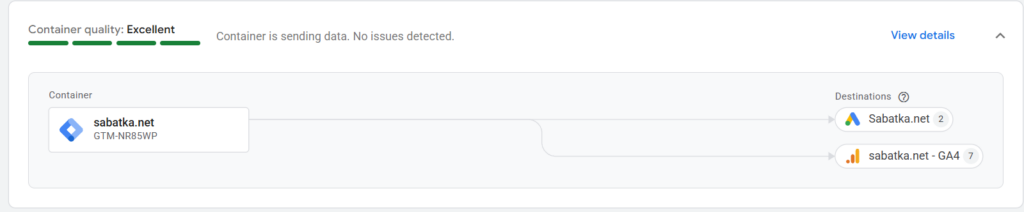
Google’s official name for it is Optimize your Google Tag Manager container (release note from October 12, 2026). The container (the bundle of your tags and settings in GTM) becomes a Google tag itself. The existing Google tag type, which loaded its own gtag.js, is now labeled “legacy”: an older type that still works but still downloads its own gtag.js. GA4 and Google Ads join the container as “Google destinations”, the places GTM sends data to. Each destination has its own destination tag, which sends data without any extra file.
What changes in the interface:
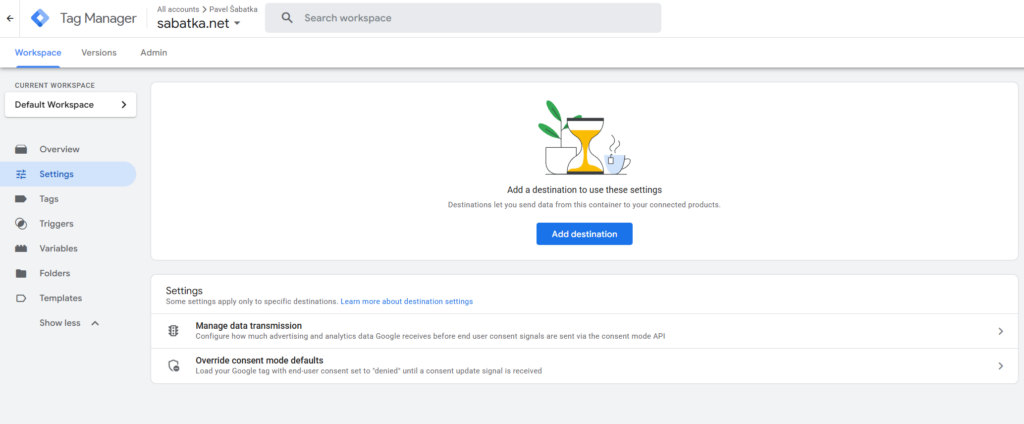
Settings in the left menu: a list of destinations with an Optimized column (Yes/No) and settings shared by all destinations, such as automatic event detection (automatic tracking of scrolls, outbound clicks and forms) or Manage data transmission (what may be sent without consent).
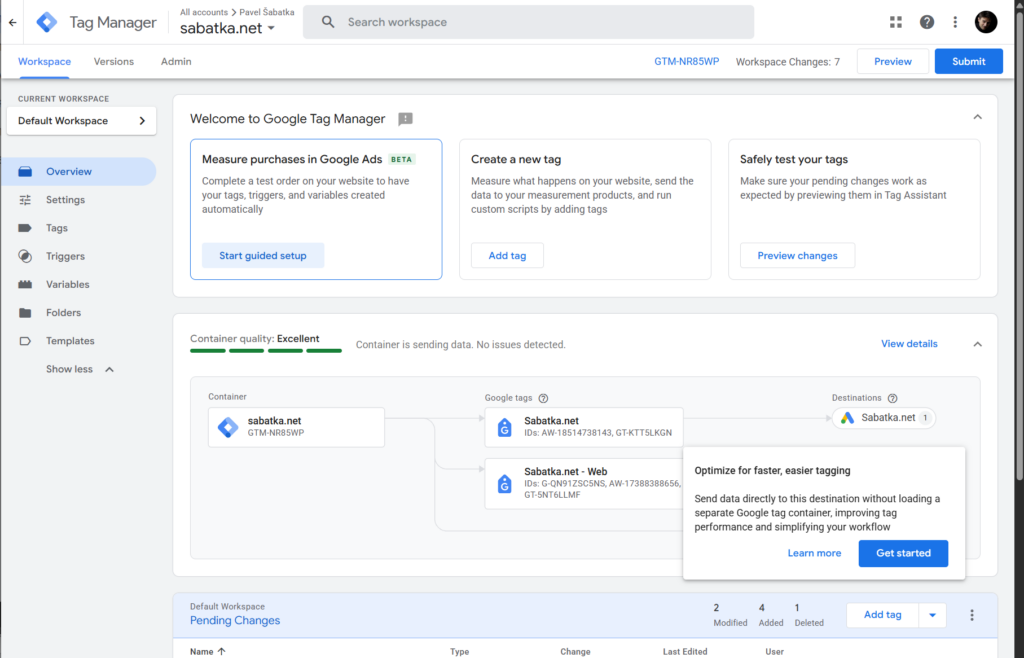
Overview > Container quality with a map showing what flows to which destination.
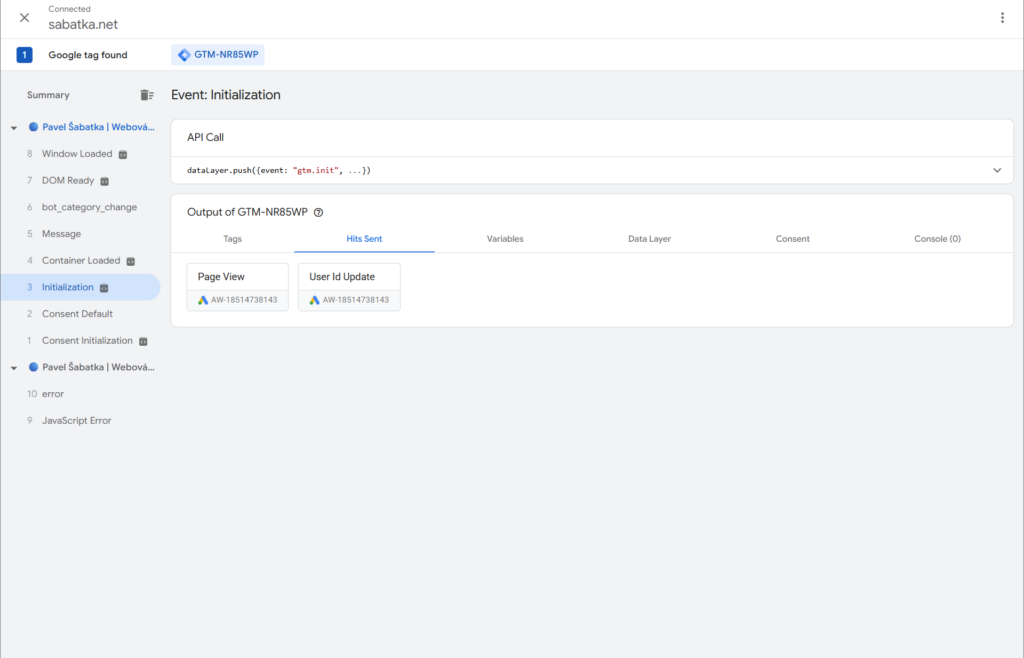
In Preview (the test mode that shows what would fire on your site before you publish), a new Hits Sent tab showing what was sent where.
Technical setup
Run the optimization wizard
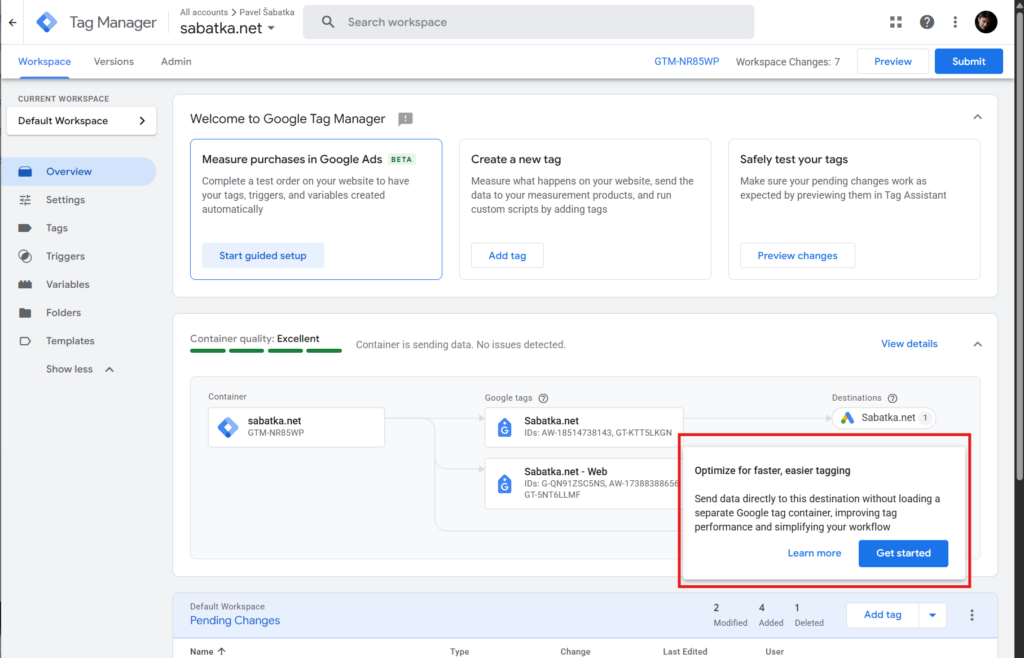
- On Overview, hover over one of your Google tags and a window offering the optimization appears. Alternatively, open Settings > Google destinations, hover over “No” in the Optimized column and click Get started (or Review details). The optimization wizard opens.
- In the wizard, select the Google tags you want to optimize, ideally all of them. Any tag you leave out, or don’t have access to, stays unoptimized and keeps downloading its own gtag.js. You can also choose whether people with access to GA4 or Google Ads get to see the container’s settings and content (Read access).
- If the settings of individual tags differ, pick the Google tag whose settings become the shared ones.
- Confirm with “Add to workspace” in the top right corner.
The proposed changes show up in Overview like any other workspace changes. Nothing goes live until you publish it yourself.
Then:
- Test the changes in Preview.
- Publish via Submit.
- After publishing, check your reports to make sure data keeps flowing as before.
Before consent, send data only through your own server
If you want to block remarketing data without consent and keep sending cookieless analytics pings through your own server, you need the following:
- You load GTM from your own domain.
gtm.js is served through your sGTM, not from googletagmanager.com. Watch out for Google tag gateway via a CDN (such as Cloudflare), which only serves Google’s files through your domain: it changes the address, but data and IP addresses still go to Google, so it’s not enough for this goal. - You send GA4 data to your own domain.
The GA4 destination hasserver_container_urlset to your sGTM address. - You strip the visitor’s IP address from the request.
Ideally before it reaches sGTM: on your own proxy, in a load balancer or in Cloudflare, for example. The setup is more complex, though, and beyond the scope of this article. A simpler option is “Redact visitor IP address” in the GA4 tag in sGTM, but the IP address still reaches sGTM. Either way, expect GA4’s geographic reports to become unreliable without the IP address. - All your Google measurement tags live in GTM.
No tags pasted directly into the page HTML. - You have Consent Mode set up.
- Your container is optimized.
See the steps above.
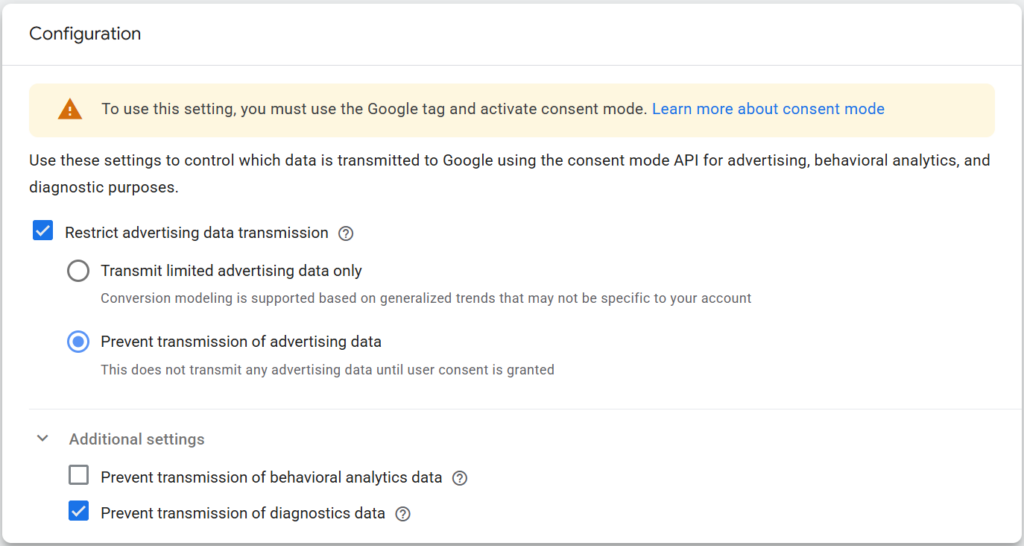
Then you can limit what’s sent without consent. In Settings > Manage data transmission, tick:
- Prevent transmission of advertising data – blocks advertising data (remarketing, advertising identifiers).
- Prevent transmission of diagnostics data – blocks the service data Google uses to monitor whether your tag and Consent Mode work.
Then publish the changes.
Note: if you also tick “Prevent transmission of behavioral analytics data”, Google tags send nothing at all until consent is granted. For GA4, this effectively switches you from Advanced to Basic Consent Mode. You lose GA4 modeling as well as cookieless pings in the BigQuery export.
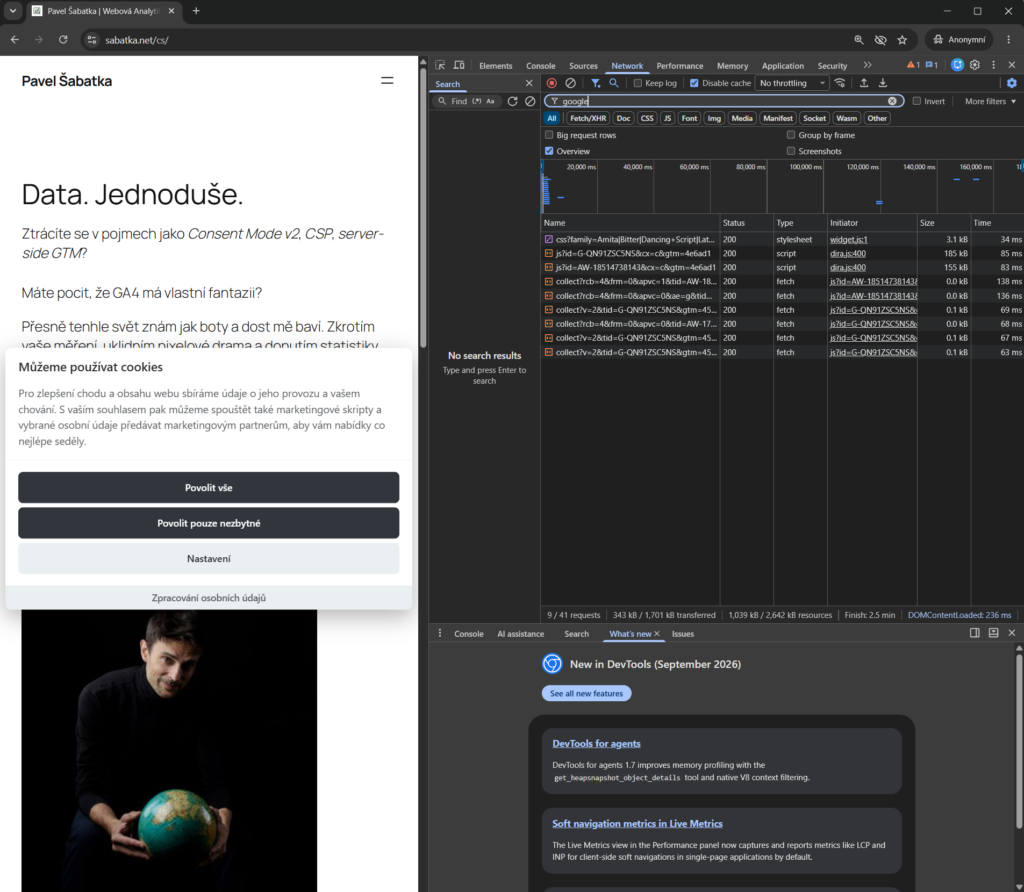
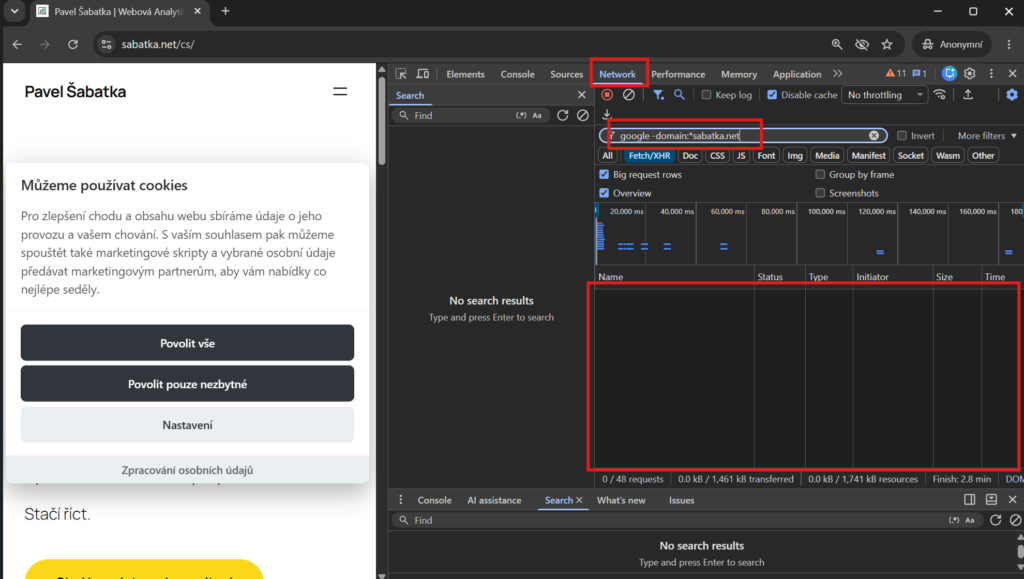
To check how your site behaves, open DevTools > Network in an incognito window before granting consent. Filter by domain, not by text. A plain search for “google” also matches requests to your own server, because their URLs contain “google” in parameters (the browser name Google Chrome, for example). The simplest filter is -domain:*yourdomain.com, which shows every request to a third-party domain. For a targeted search, use google -domain:*yourdomain.com, then repeat with doubleclick and gstatic. If something third-party still shows up, it may not be GTM at all. On sabatka.net, it was a newsletter widget loading Google Fonts.
Watch out for
- Shared automatic event detection applies to all destinations. Form events may start flowing into Google Ads too.
- Permissions: if you grant Read access in the wizard, everyone with access to the linked GA4 property or Google Ads account can see the container’s content. Check who that is first. Permissions aren’t versioned, so rolling back to an earlier container version won’t undo them. You can change them in GTM under Admin > External account links.
- Conversion Linker (the tag that stores ad click information for conversion tracking): remove it only after checking all destinations.
- Rolling back means reverting to a previous container version, and the whole optimization is undone at once.
- Your own domain doesn’t remove the need for consent for measurement itself.
Conclusion
GTM container optimization is one of the few measurement changes that makes your site faster without needing a developer: the wizard in the interface is enough. On my site, it saved roughly 300 kB of transfer and two files from Google. If you see it in your account, it’s worth running.
The second benefit is optional. With server-side GTM on your own domain, you can go further and keep your site from contacting Google at all before consent, or send Google only limited data from your server. It comes at a cost: without advertising data, you lose part of your remarketing. If you also block behavioral analytics, GA4 loses modeling too. You still need consent for measurement itself. What changes is who sees your visitors’ data, and when.